
This guide shows you how to use SaySum on iPhone, iPad, and Mac—from recording to transcription, summaries, AI Q&A, and sharing results.
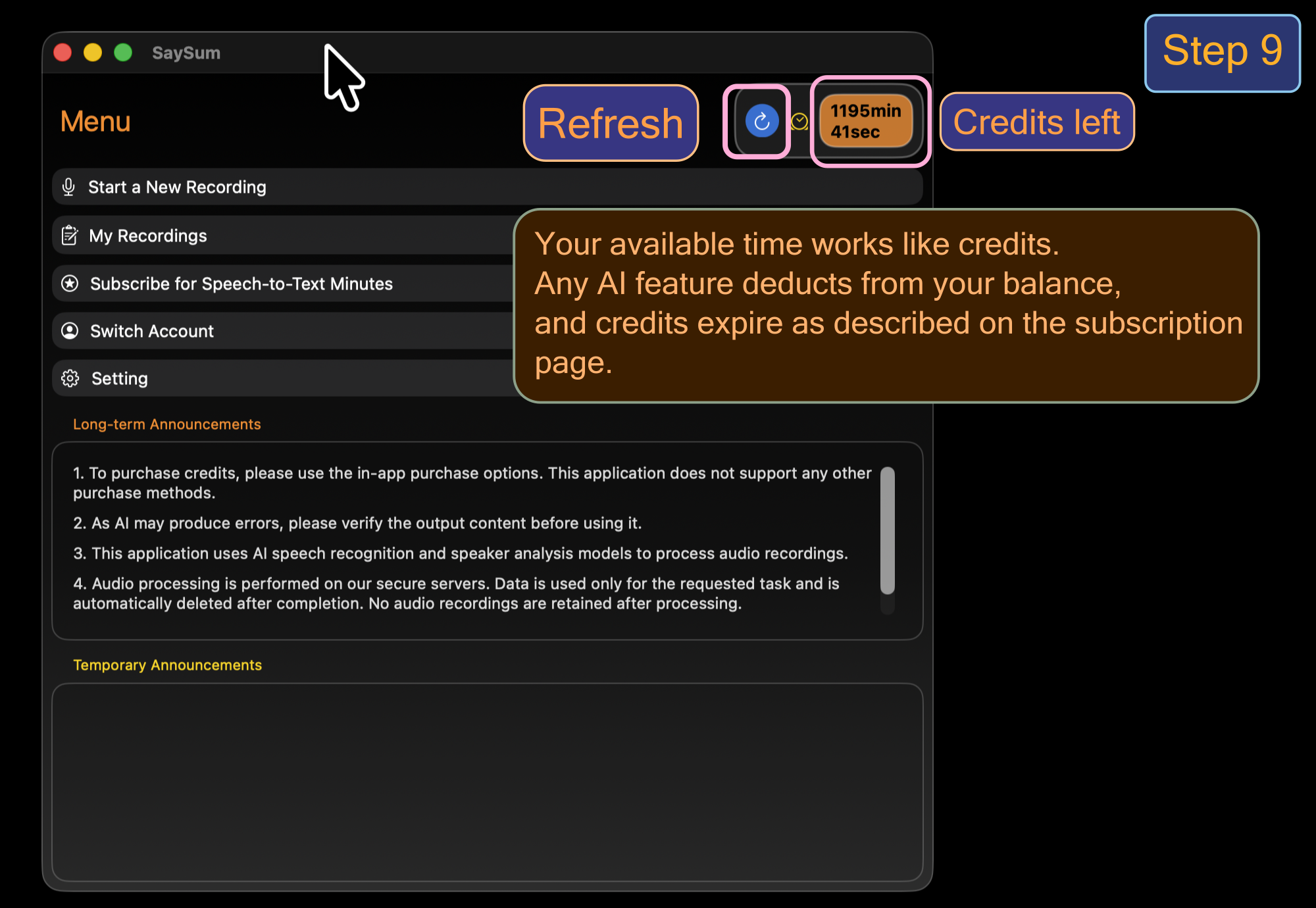
Credits notice: Your available time works like credits. Any AI feature deducts from your balance, and credit expiration details are listed on the subscription page.
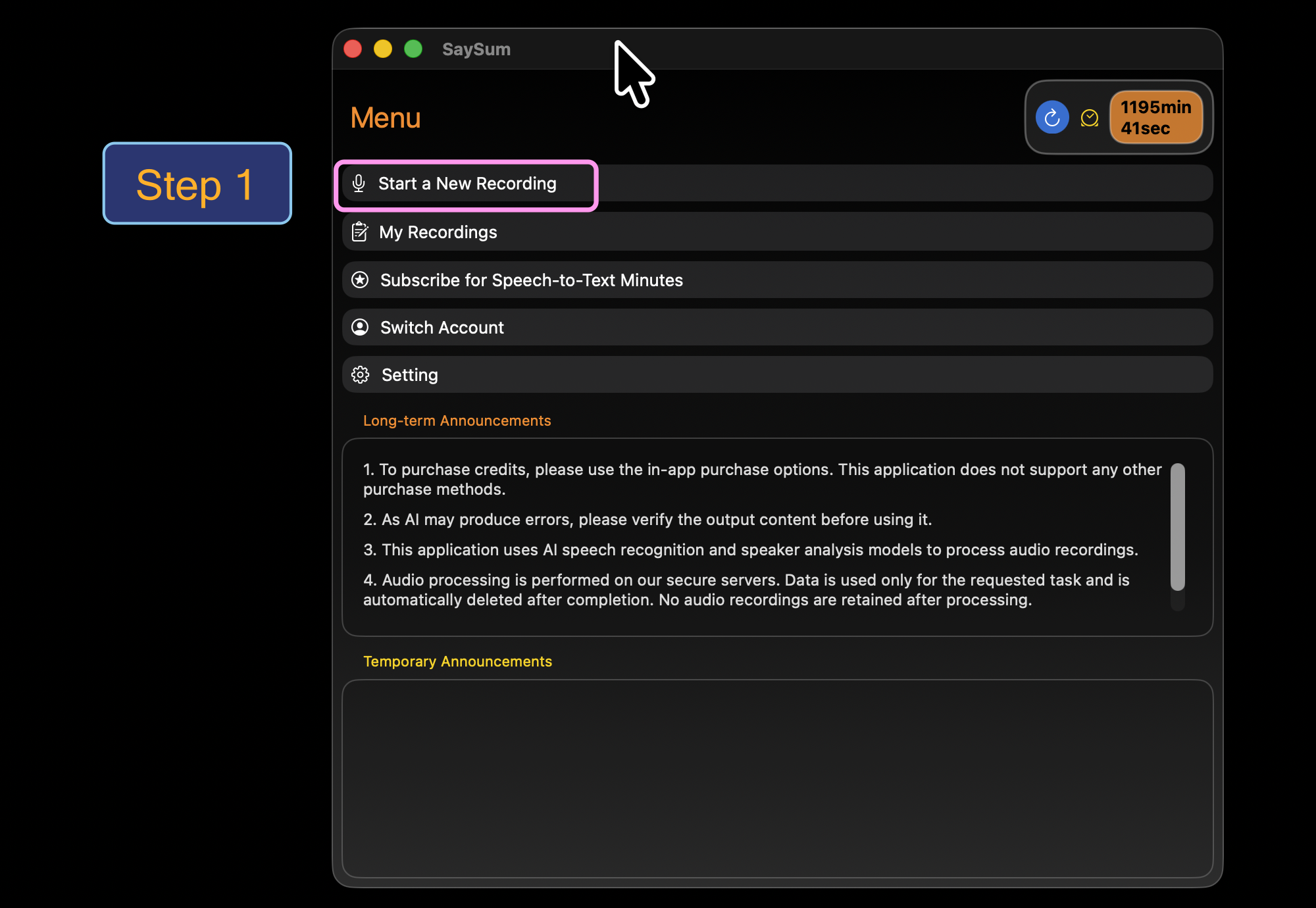
Open the Menu, then tap Start a New Recording.
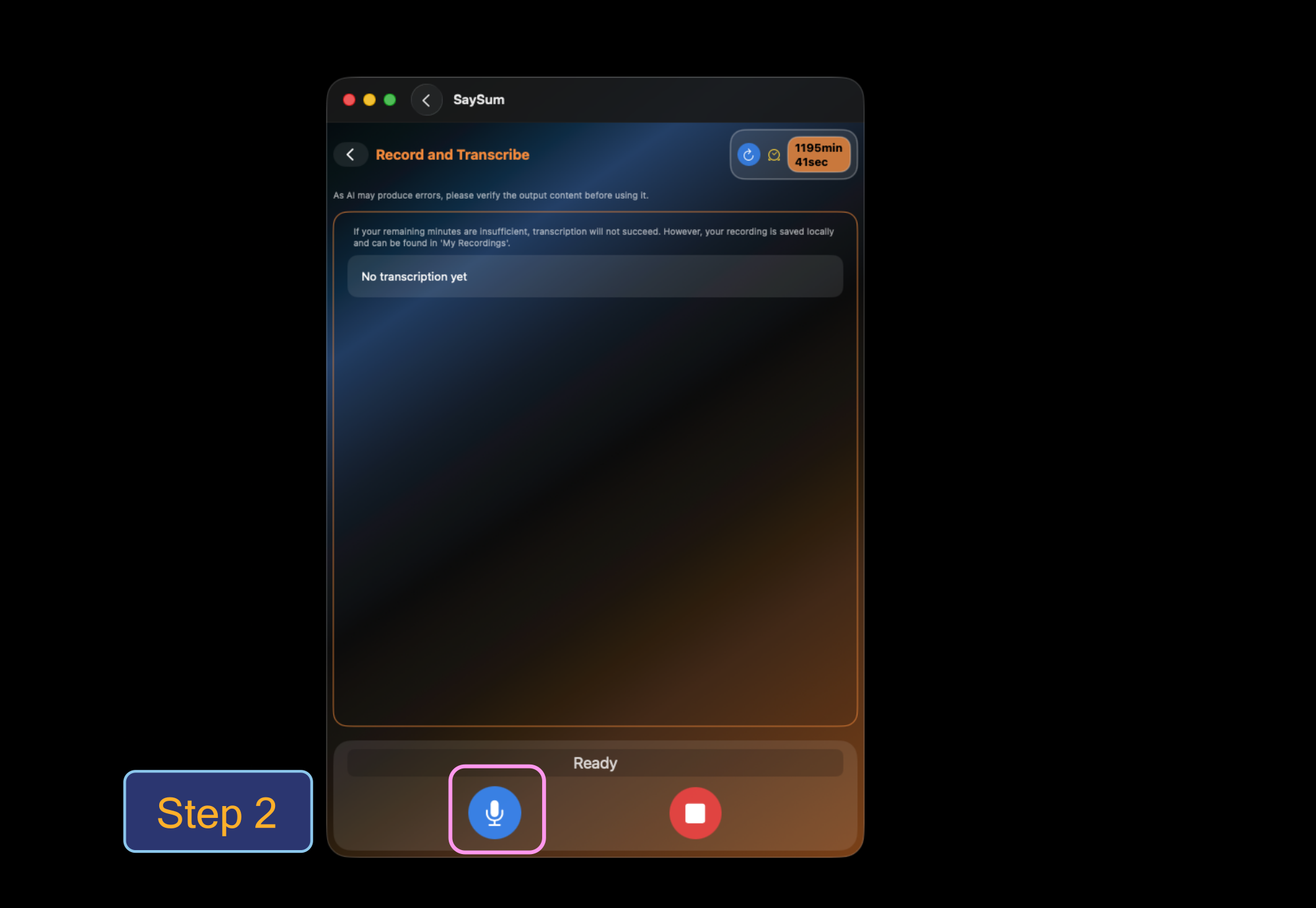
Tap the microphone button to start recording.
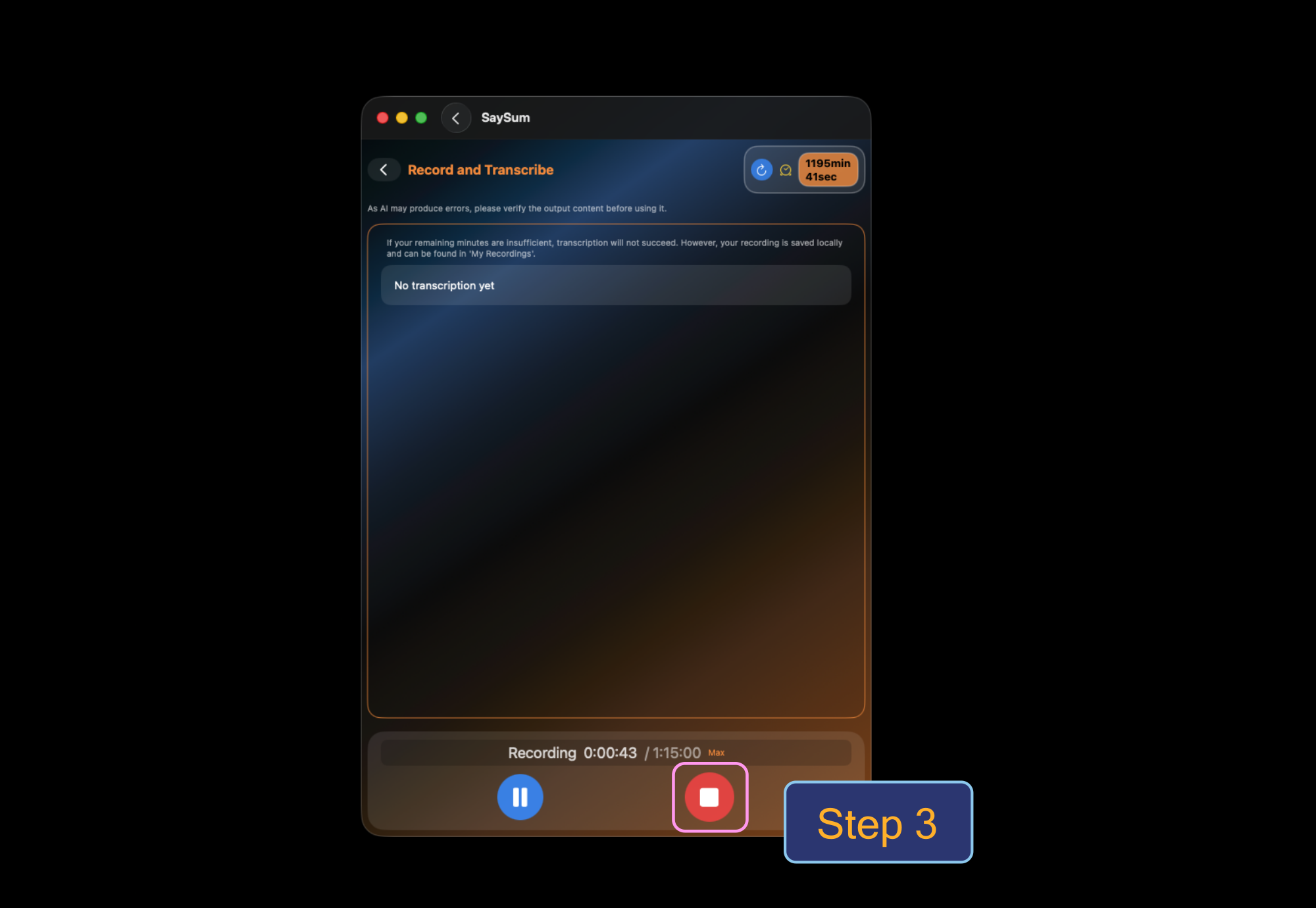
When finished, tap Stop.
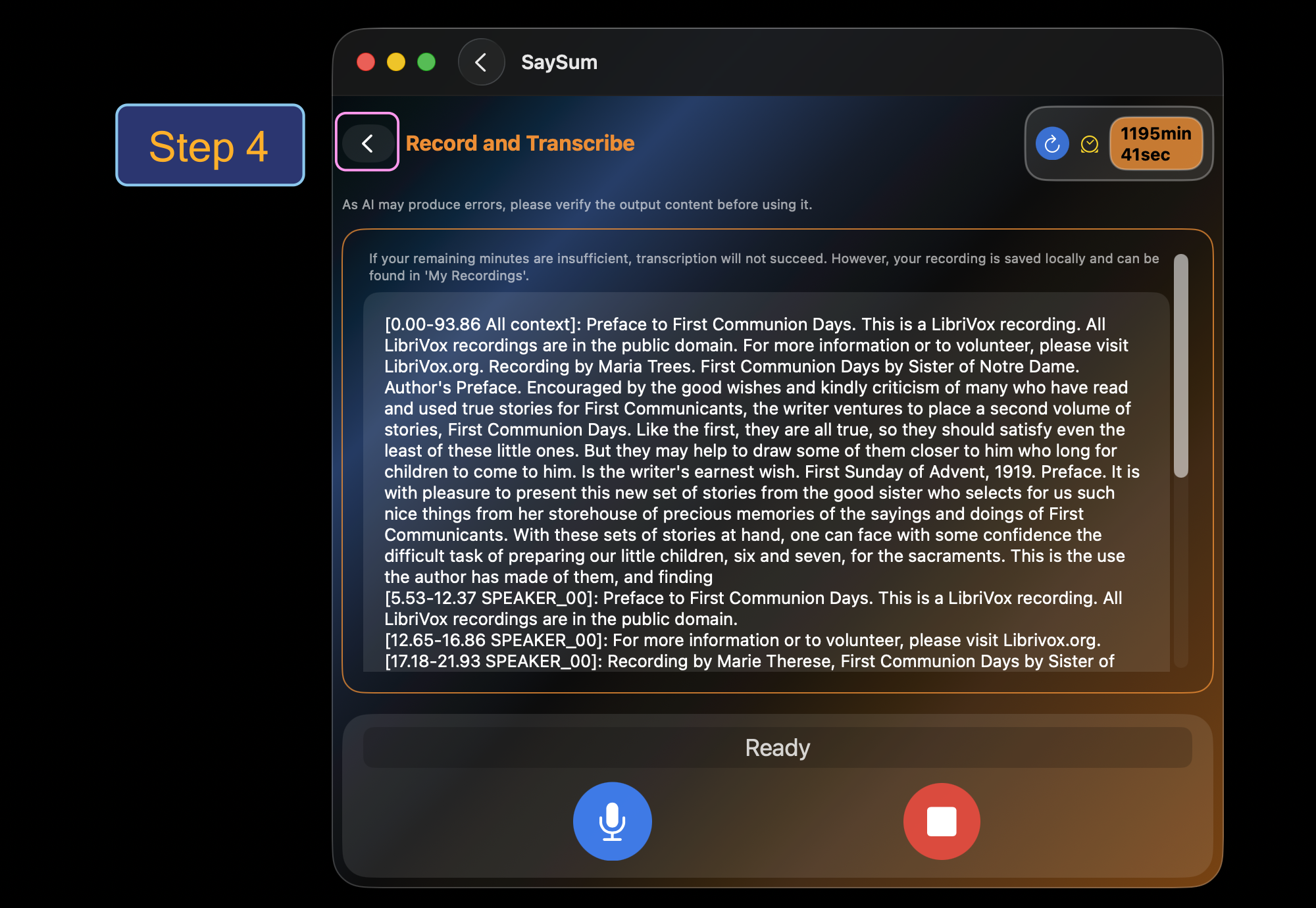
Use the Back button to return to the previous screen.
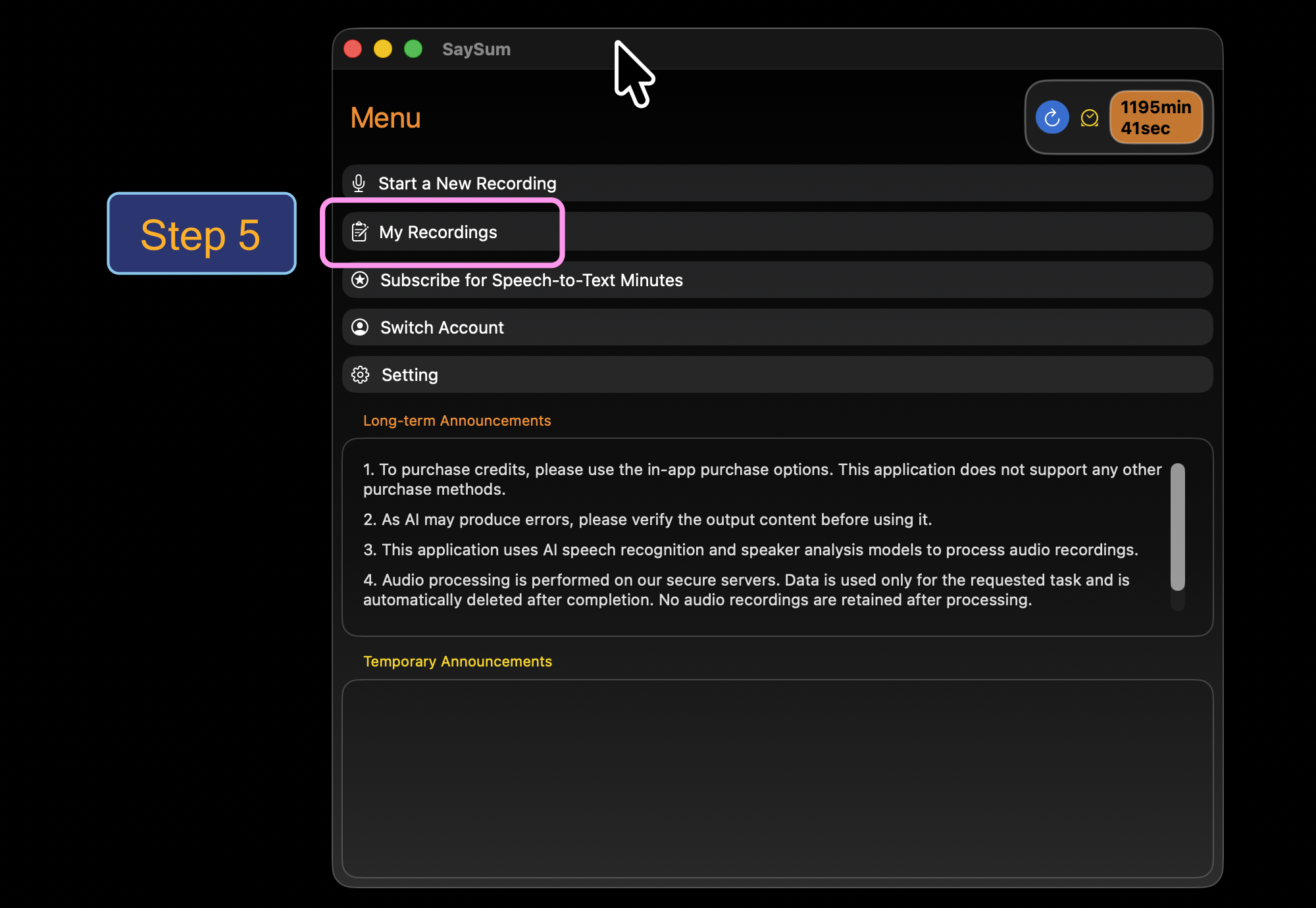
Tap My Recordings to open the list of all your recordings. Select a recording to open Transcribed Text, Summary & Ask AI.
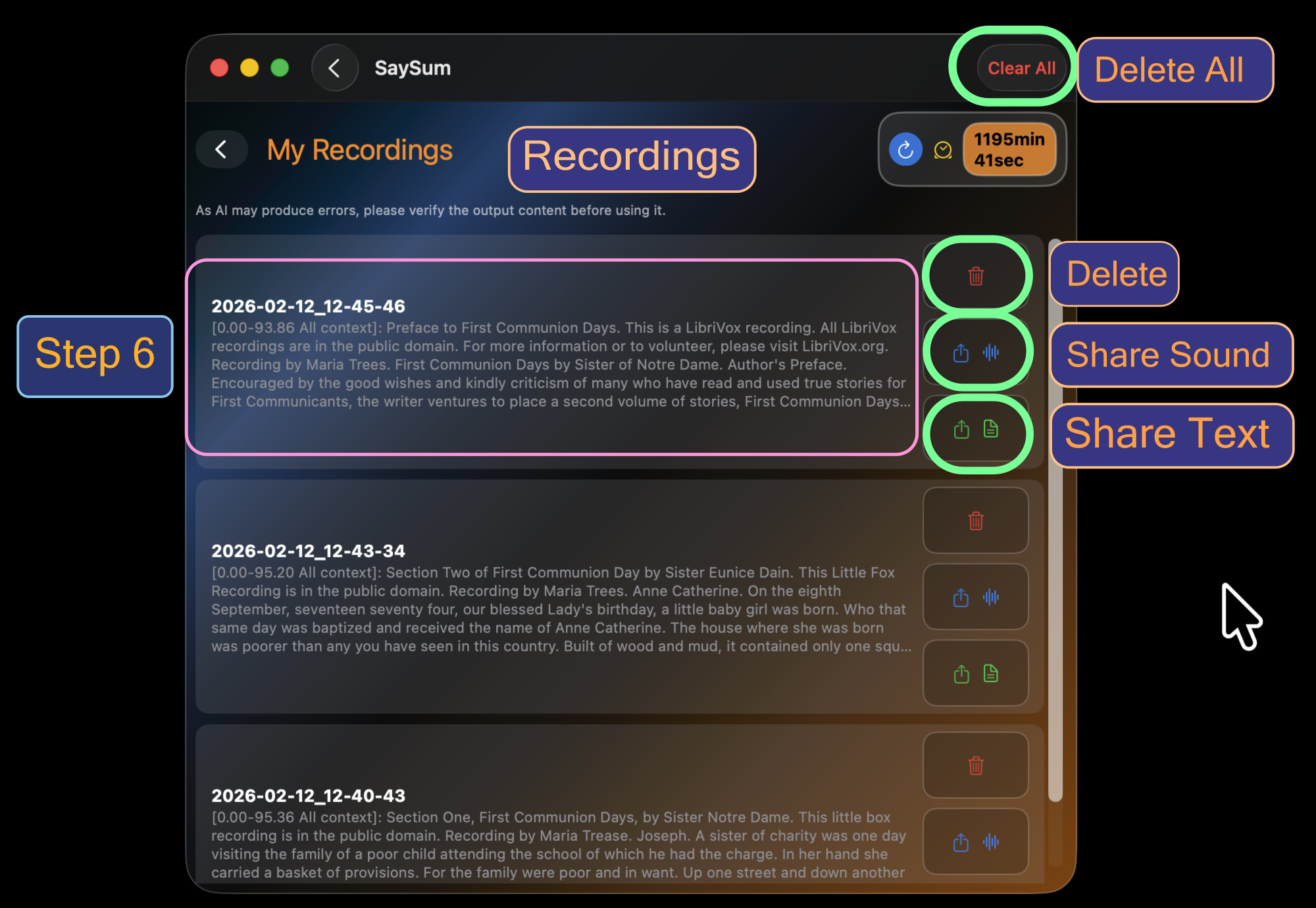
In My Recordings, you can Clear All, delete a single recording, or share it as Sound / Text.
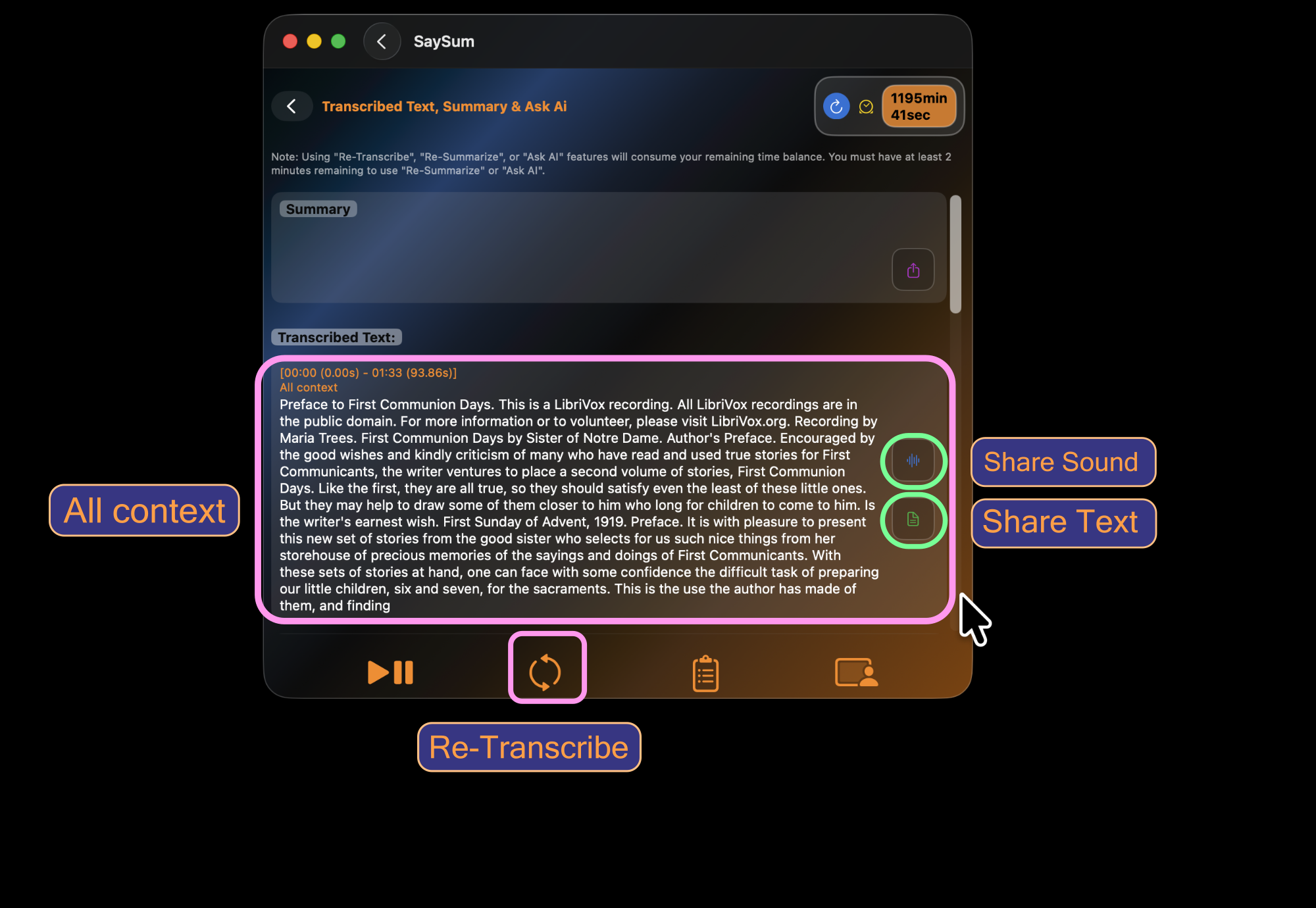
After opening a recording, you can use Re-Transcribe, and share options.
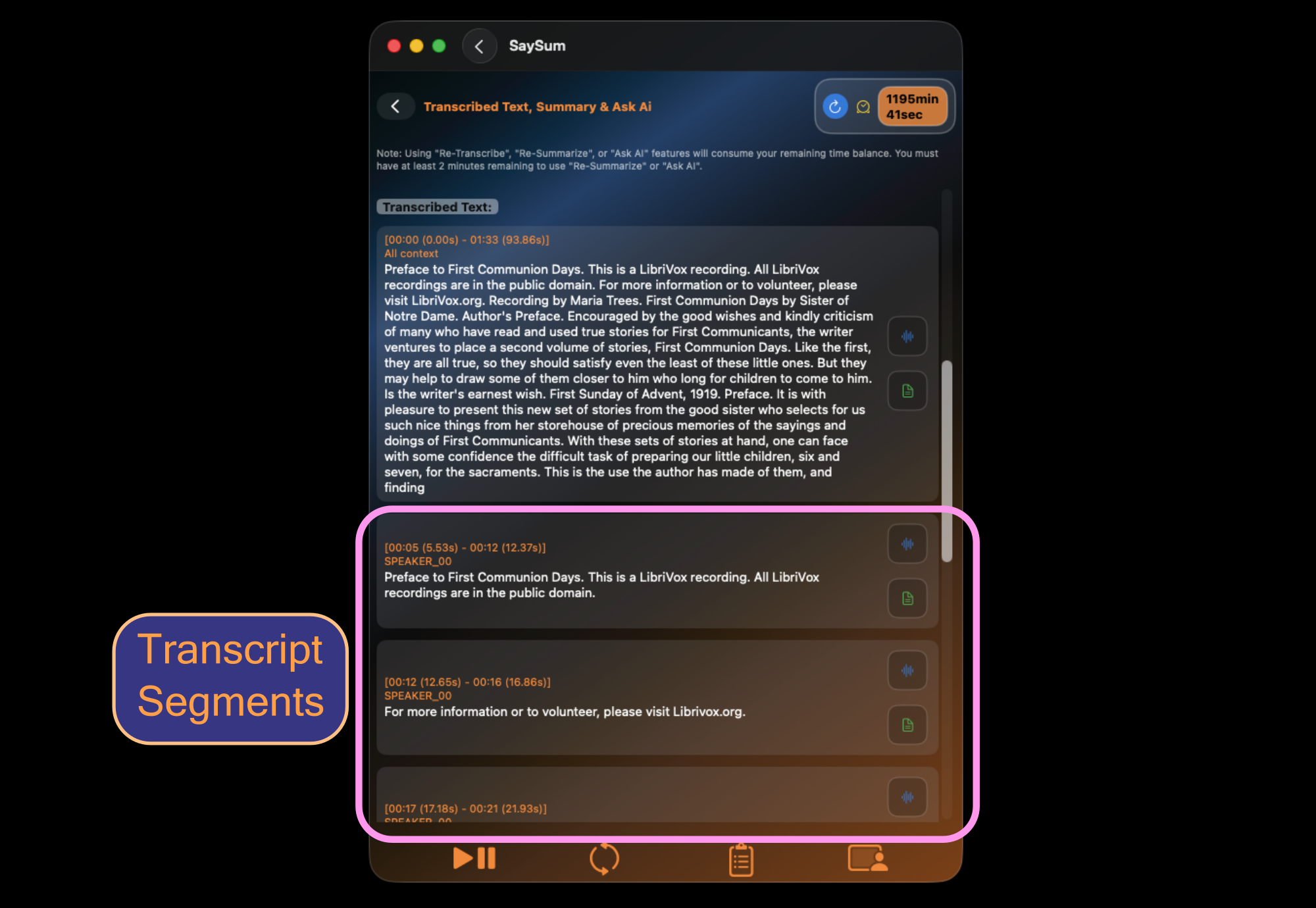
You can review Transcript segments and replay audio per segment.
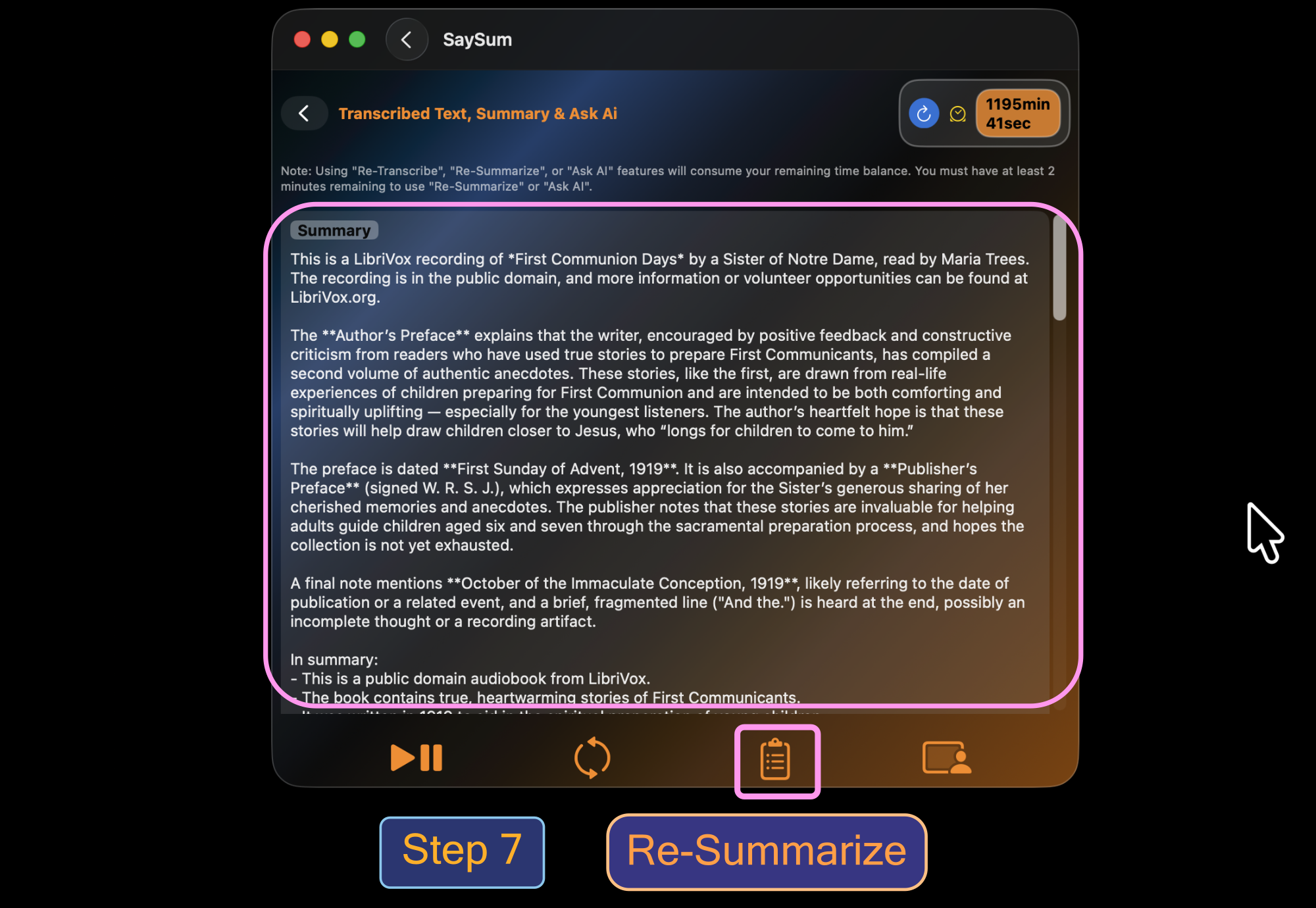
Tap Re-Summarize to generate a new summary.
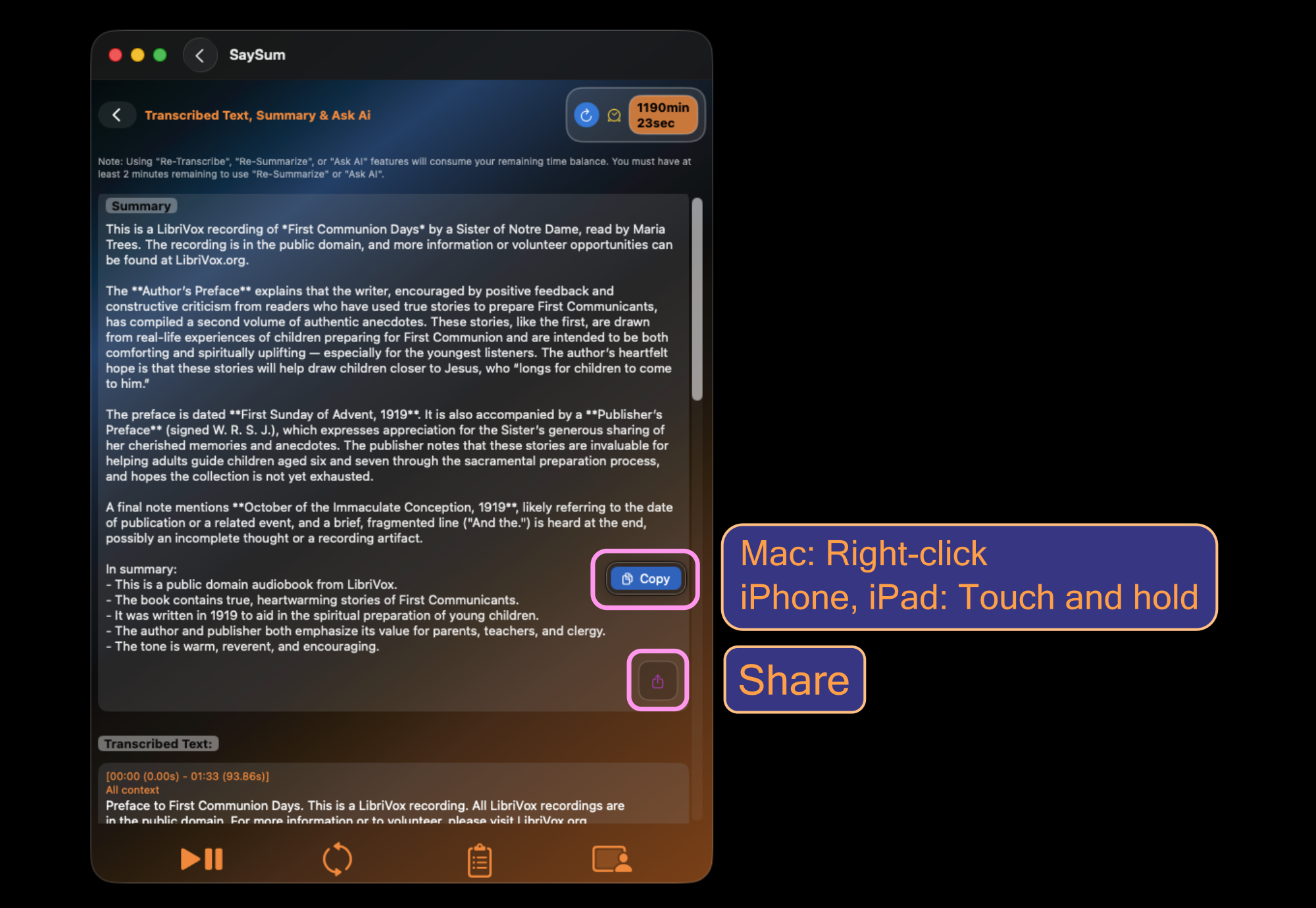
Text selection: Right-click (Mac) or Touch and hold (iPhone & iPad). Then use Copy or Share.
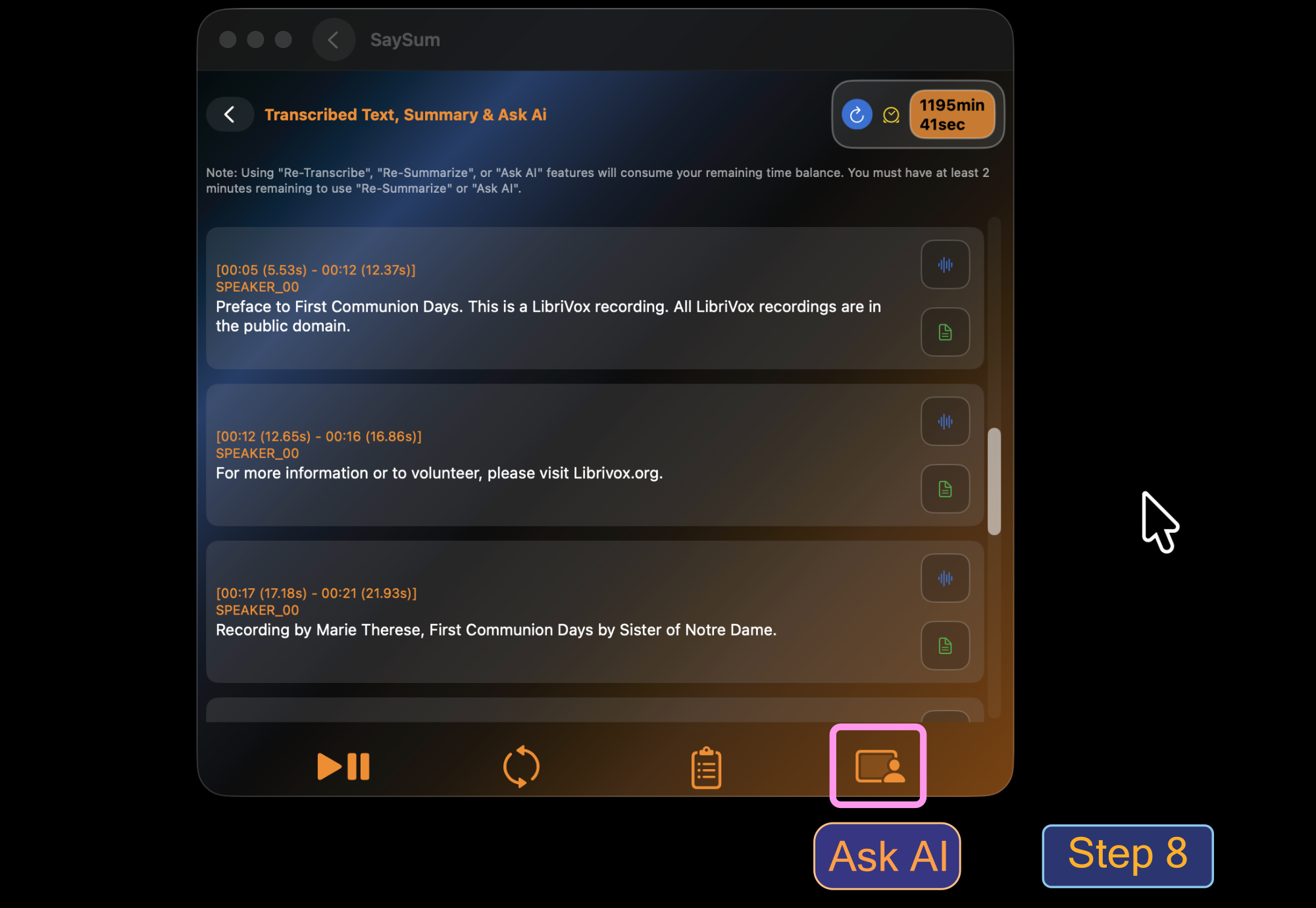
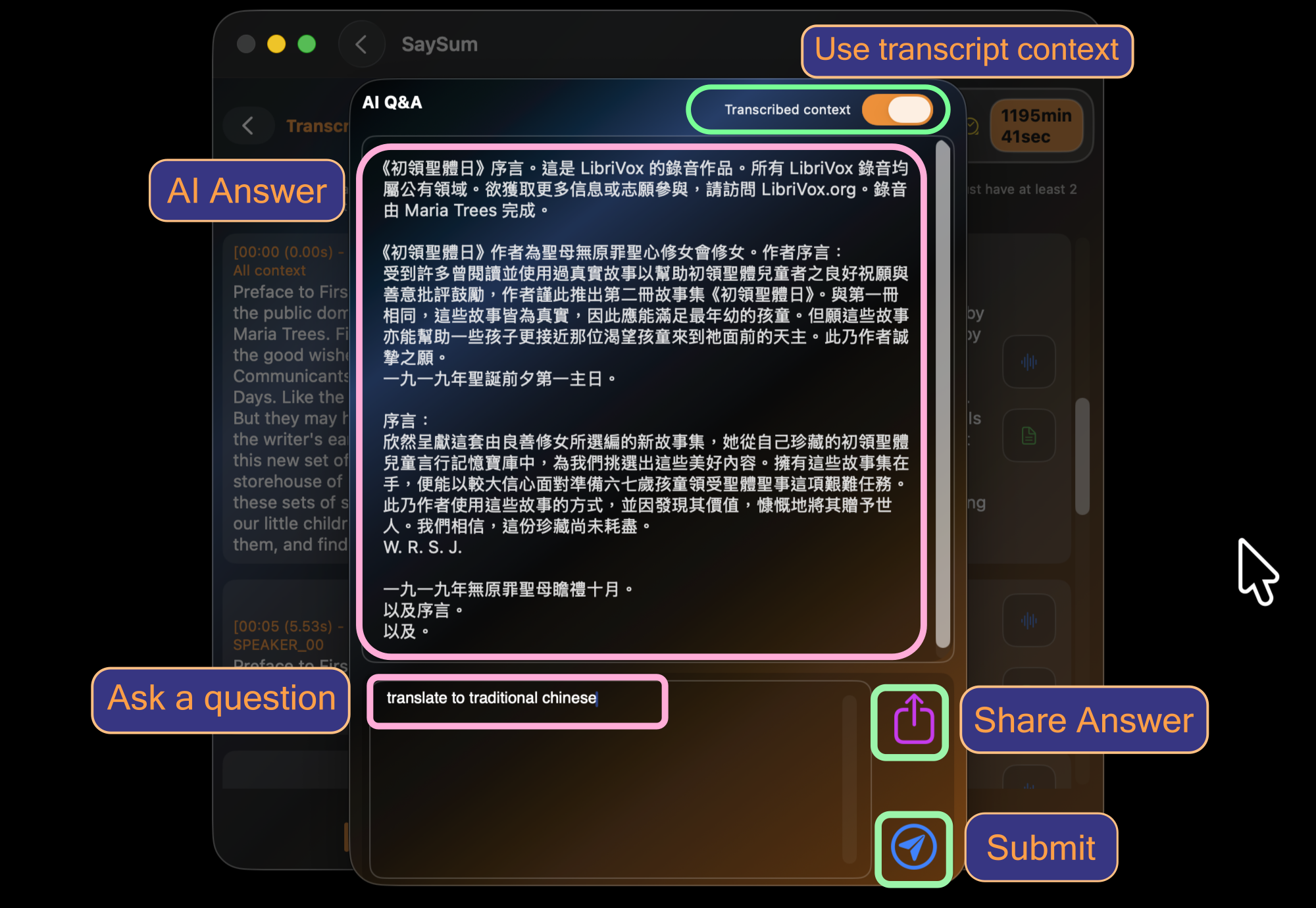
Tap Ask AI. Enable Transcribed context to include the transcript, or turn it off for a standalone question. Then tap Submit. You can also Share Answer.
Tap Refresh to update and display your credits left (remaining time balance).
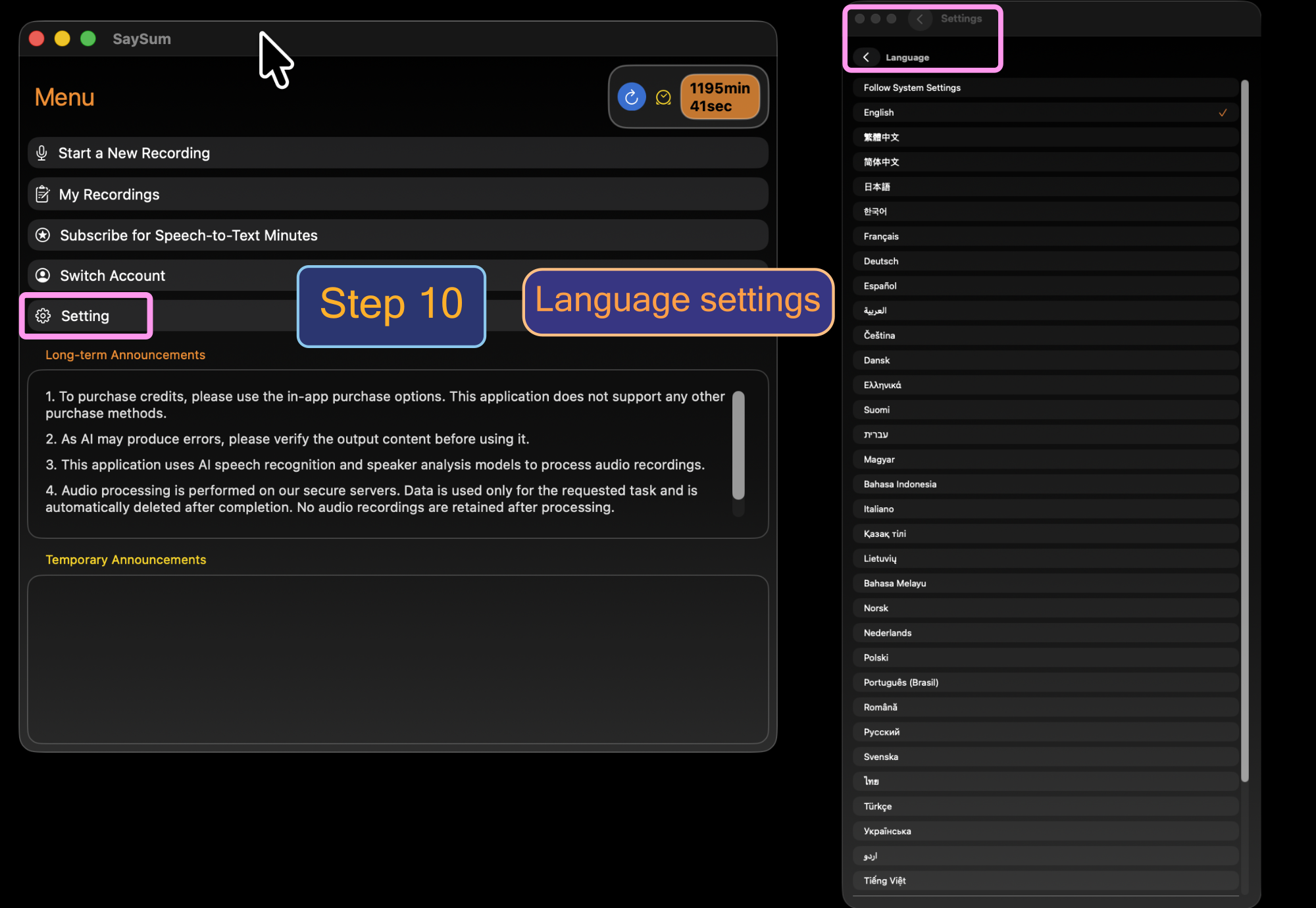
Open Menu → Setting → Language to choose your preferred interface language.
Download SaySum on the App Store
Tap the image above to open the App Store download page.
Copyright © 2025 ForeBony. All rights reserved.